
How the integration works
Odyssey can pull data directly from an energy provider’s API. Once connected, Odyssey regularly collects meter readings (Meter Metrics) from the IOBOTECH API and attaches them to your program — no manual file uploads.
The flow is simple: IOBOTECH smart meters send readings to the IOBOTECH cloud, the IOBOTECH API serves them behind your private key, Odyssey checks the key and imports the Meter Metrics, and the data appears under your Program in Odyssey Analytics.
You set it up once, with two details from IOBOTECH: an API URL and an API key. It takes about five minutes and needs no coding.
Before you start
An Odyssey account with access to Analytics — from your organisation’s Odyssey administrator.
Your IOBOTECH API URL: https://iobotech.dev/api/metering/odyssey/readings
Your private IOBOTECH API key — request it from business@iobotech.com.
The Program your meters belong to, already set up in Odyssey (for example a DARES or NEP program).
Step 1: Open API Data Integrations
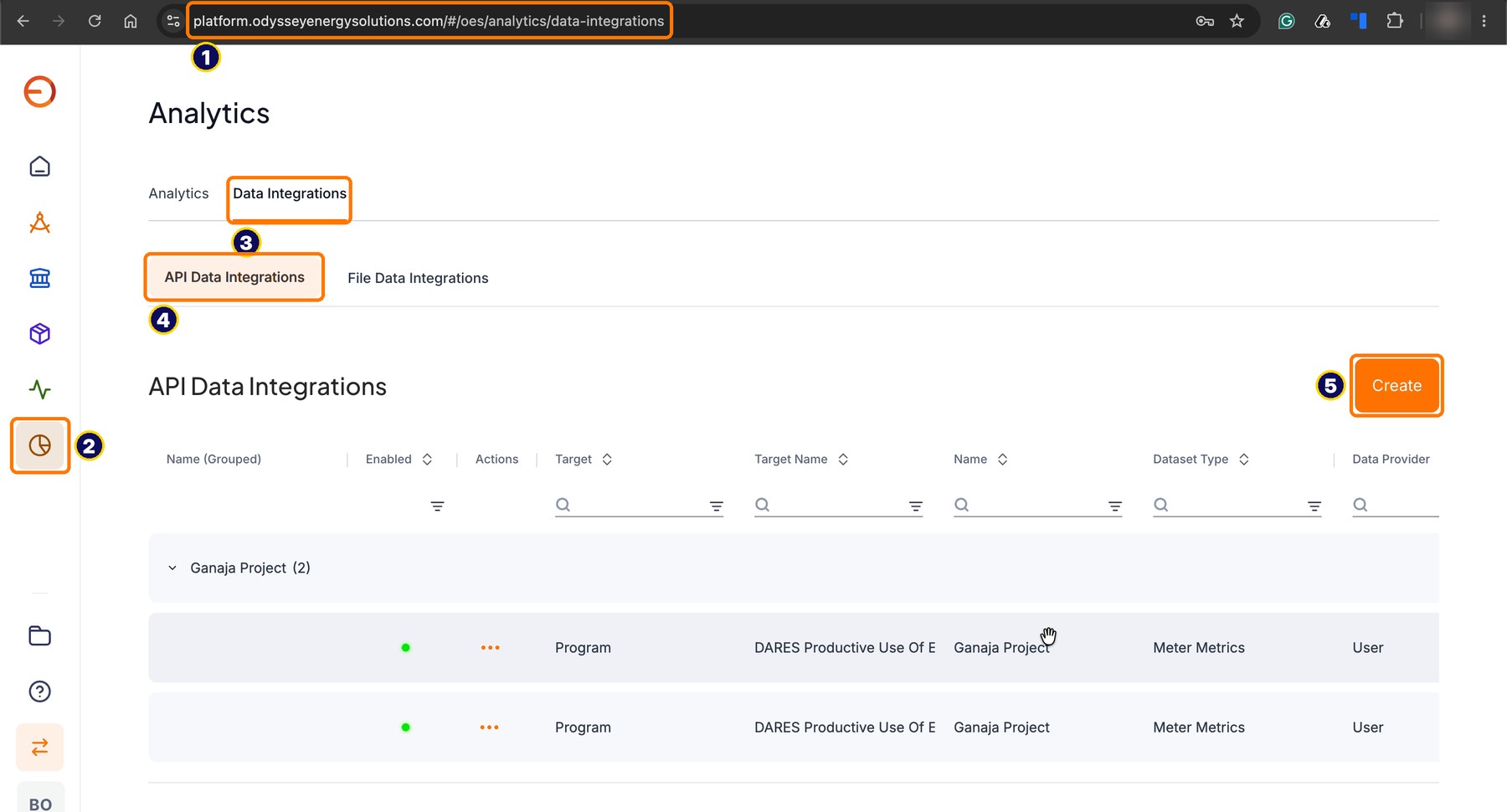
Sign in to Odyssey and open platform.odysseyenergysolutions.com/#/oes/analytic/data-integrations. Click the Analytics icon in the left sidebar, then the Data Integrations tab.
Make sure API Data Integrations is selected — not File Data Integrations — and click Create. The API Data Integrations form opens.
Can’t see Analytics? Your user may not have Analytics permission; ask your Odyssey administrator for access.
Step 2: Name your dataset
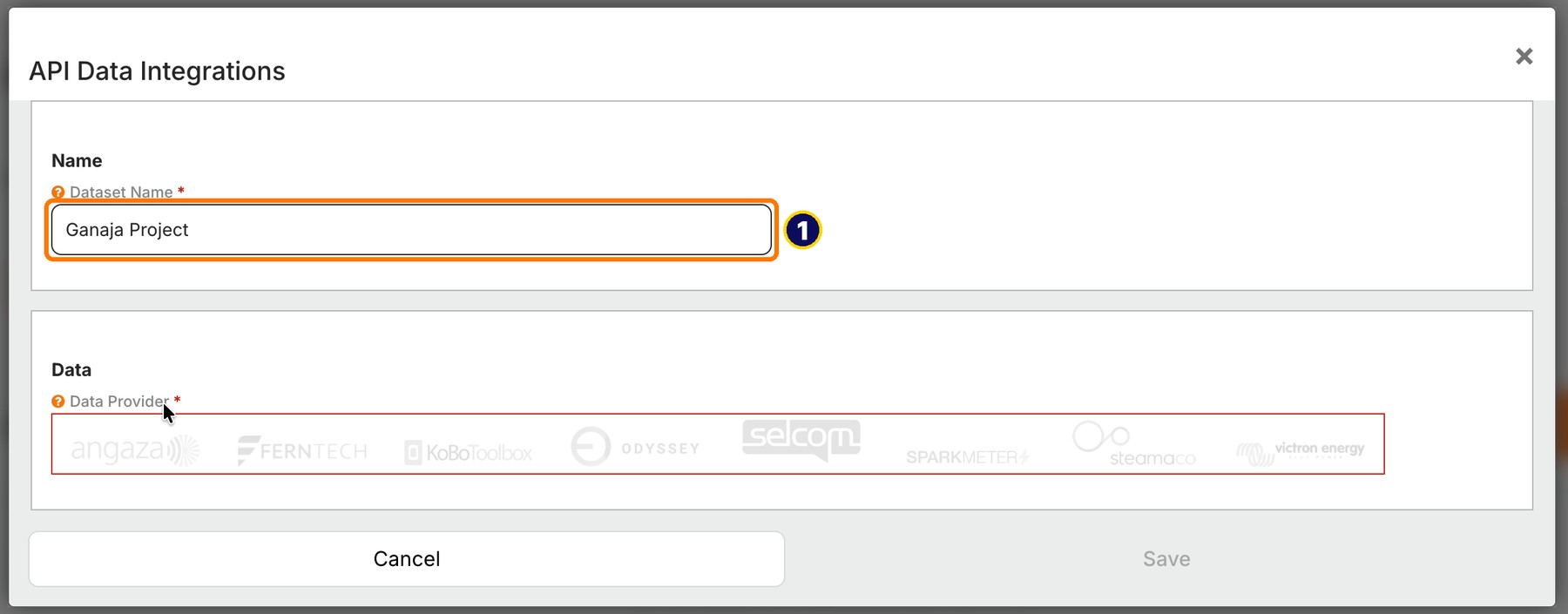
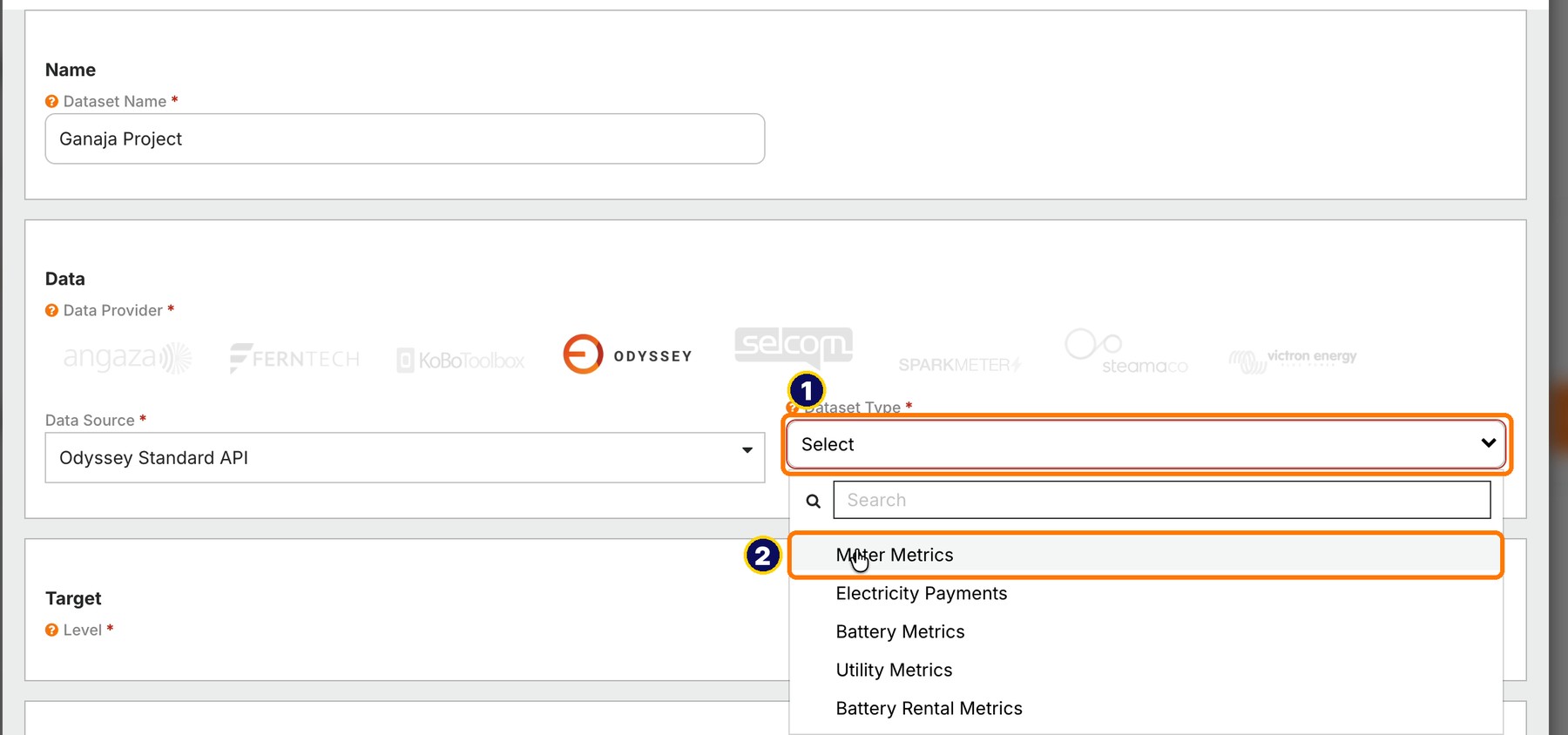
Type a clear name in Dataset Name, such as “Ganaja Project – IOBOTECH Meters”. Using the site or project name makes the integration easy to recognise later.
Step 3: Choose ODYSSEY as Data Provider
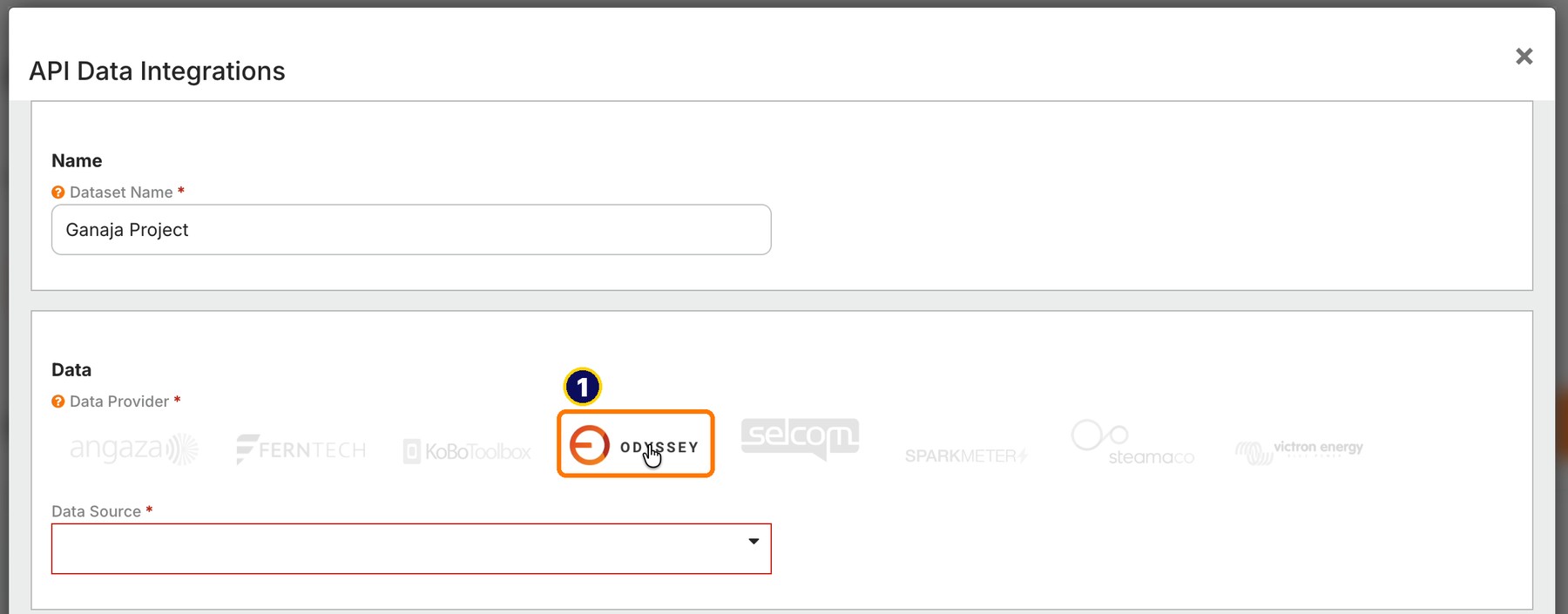
Click the ODYSSEY logo in the Data Provider row. It turns from grey to full colour and a Data Source field appears.
IOBOTECH’s API sends data in Odyssey’s own standard format, so you pick ODYSSEY rather than another vendor.
Step 4: Select Odyssey Standard API
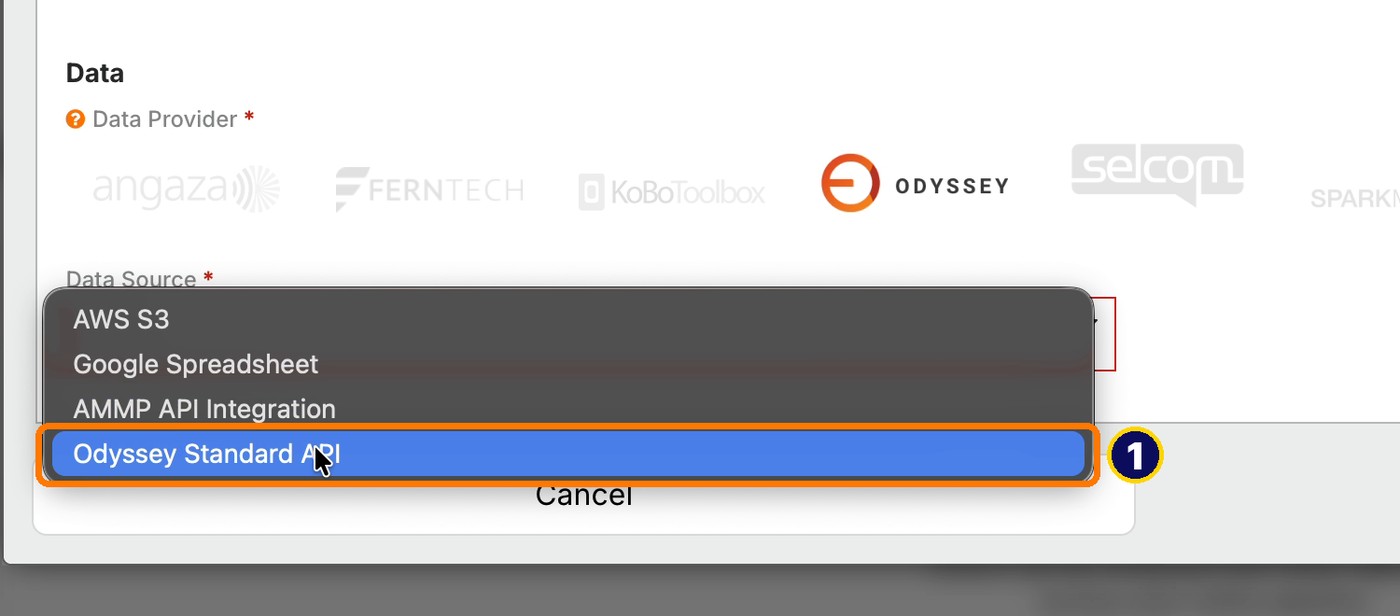
Open the Data Source dropdown and choose Odyssey Standard API. This tells Odyssey to call a web address — the IOBOTECH URL — to fetch readings.
Step 5: Set Dataset Type to Meter Metrics
Open Dataset Type and select Meter Metrics — the energy readings from your IOBOTECH meters. Don’t choose Electricity Payments, Battery Metrics, Utility Metrics or Battery Rental Metrics.
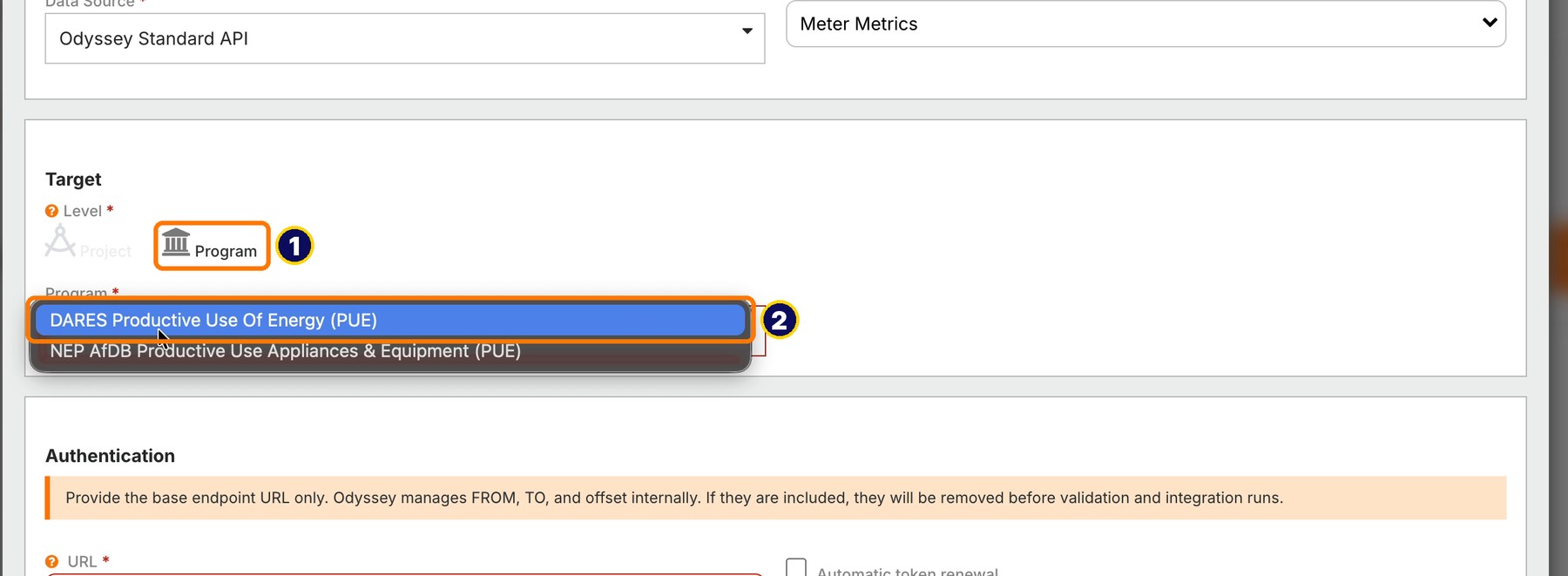
Step 6: Target your Program
Under Target › Level, click Program, then select your program from the dropdown — for example DARES Productive Use Of Energy (PUE). This links the readings to that program’s reporting.
Program missing? The list only shows programs your organisation is enrolled in; ask the program administrator to add you first.
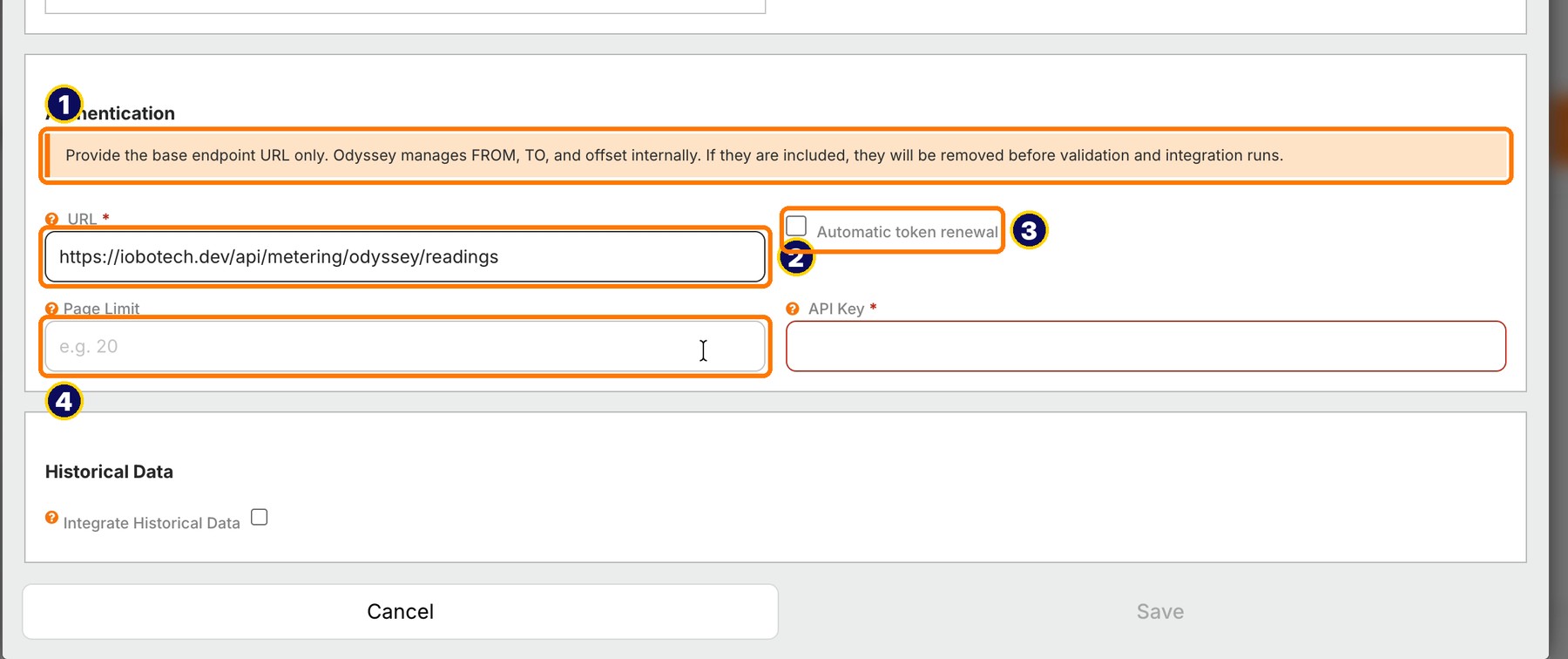
Step 7: Enter the IOBOTECH API URL
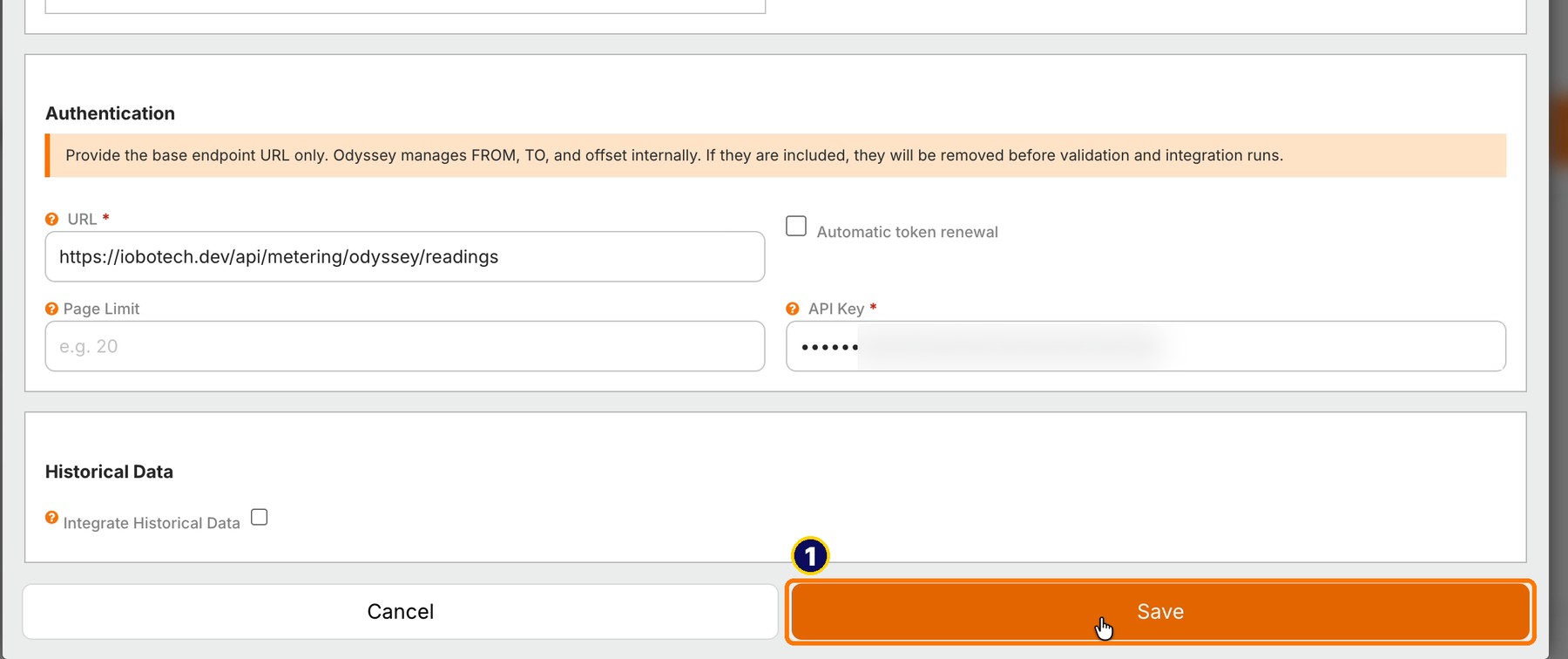
Scroll to Authentication and paste the base URL exactly: https://iobotech.dev/api/metering/odyssey/readings
Don’t add anything after /readings — Odyssey manages FROM, TO and offset itself. Leave Automatic token renewal unticked and Page Limit blank unless IOBOTECH advises otherwise.
Common mistake: spaces before or after the URL, or a missing https://, will make validation fail.
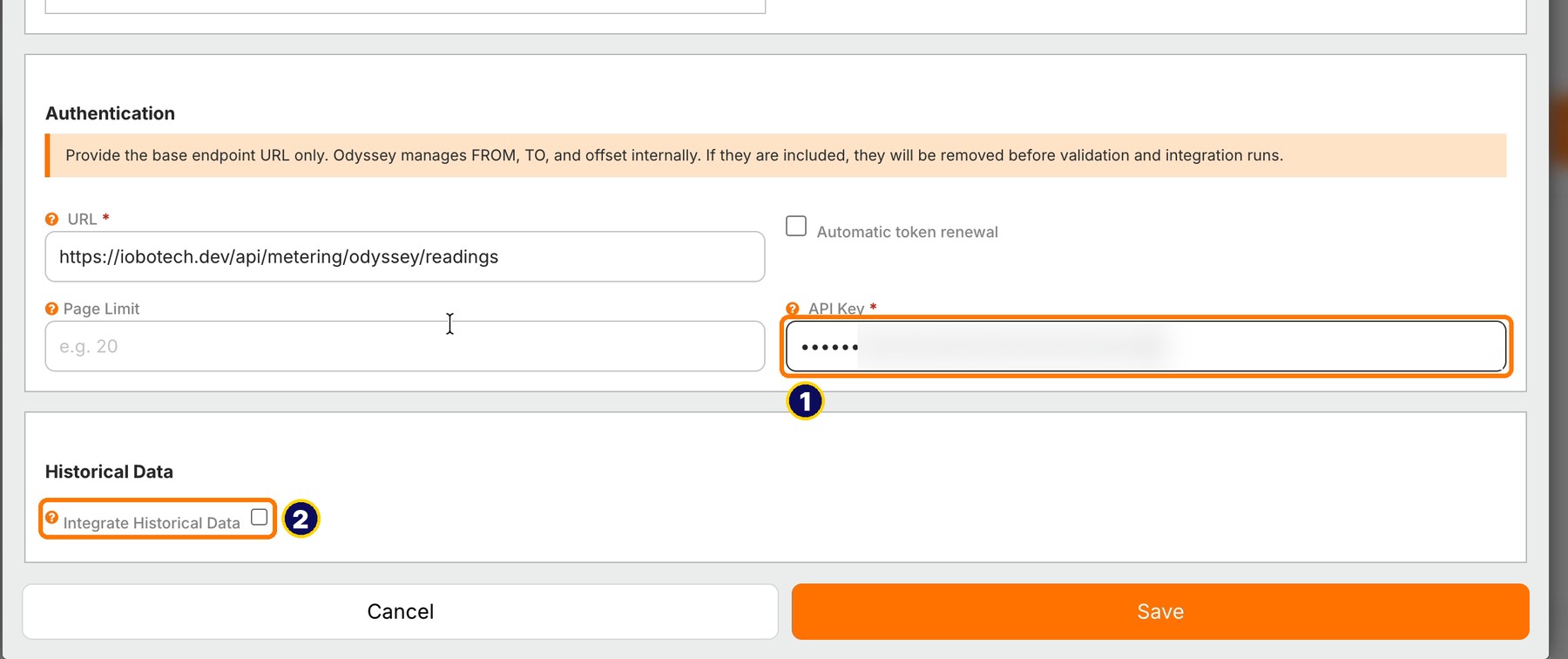
Step 8: Paste your API key
Paste your private key into API Key; Odyssey hides it as dots. Optionally tick Integrate Historical Data to backfill readings from before today.
Keep your key safe: never share it on WhatsApp, email threads, screenshots or recordings, and don’t let the browser save it. If it’s exposed, contact IOBOTECH immediately to replace it.
Step 9: Save once and wait for validation
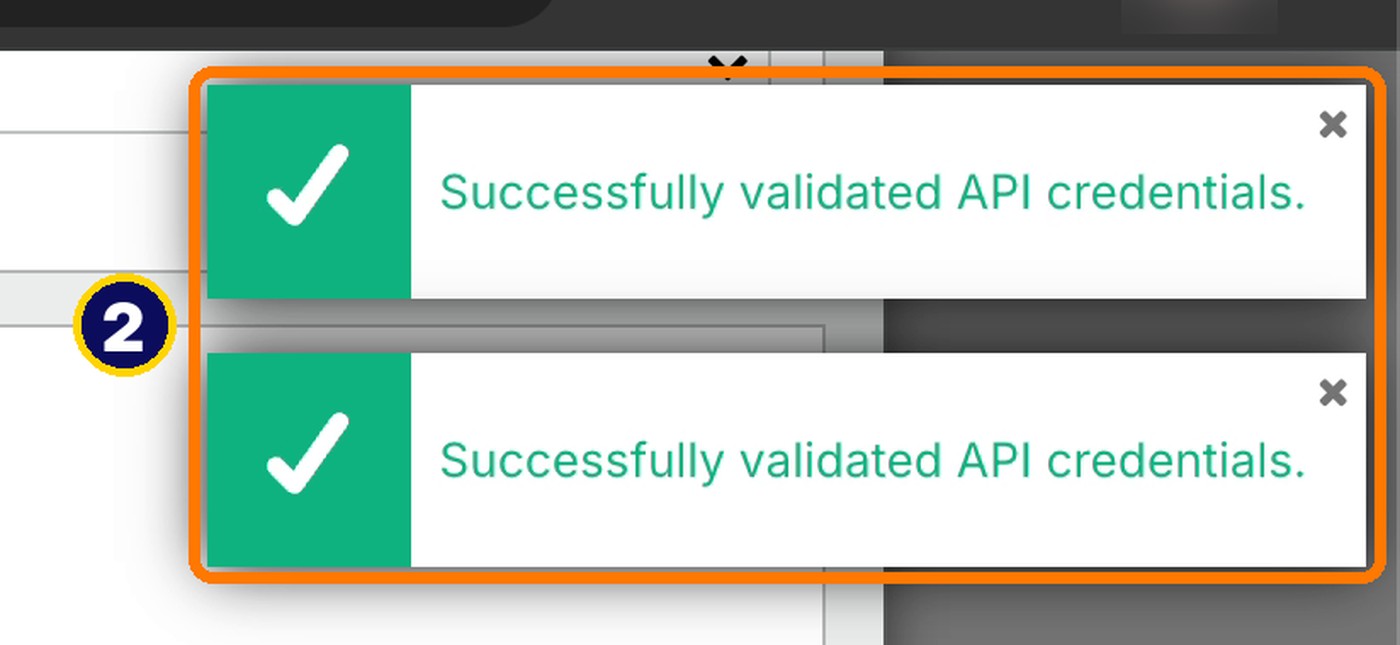
When every required field is filled, the Save button turns orange. Click it once. Odyssey calls the IOBOTECH URL with your key and shows “Successfully validated API credentials.” when the connection works.
Clicking Save twice can create a duplicate integration — if that happens, disable the extra copy so readings aren’t imported twice.
Step 10: Confirm it’s live and manage it
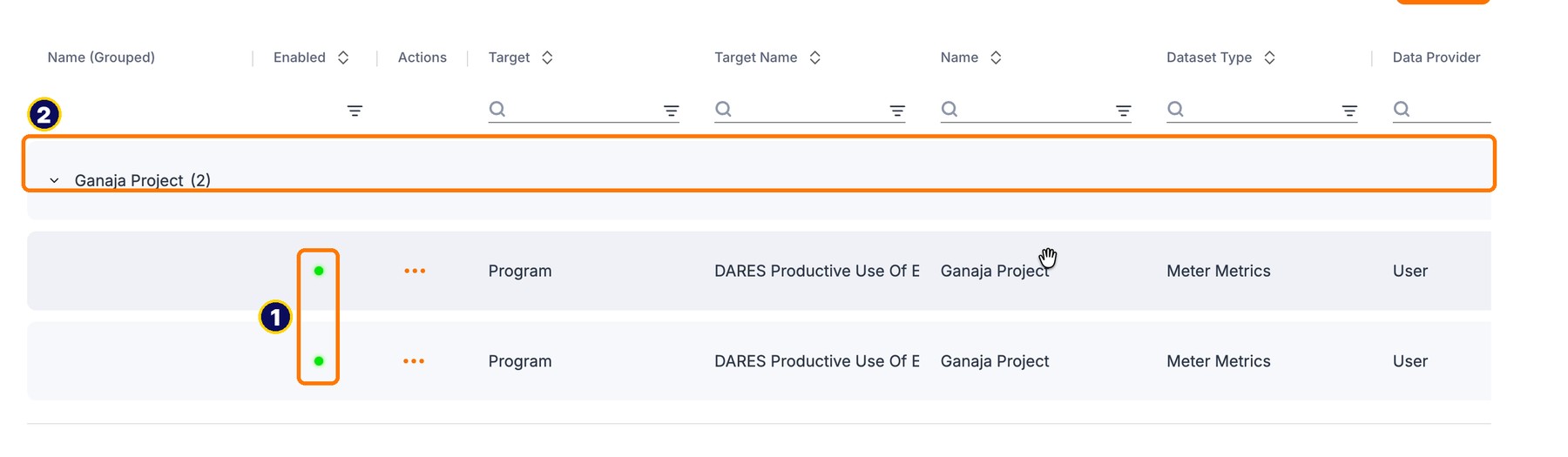
Your integration appears in the list, grouped by Dataset Name. A green dot under Enabled means Odyssey is collecting data.
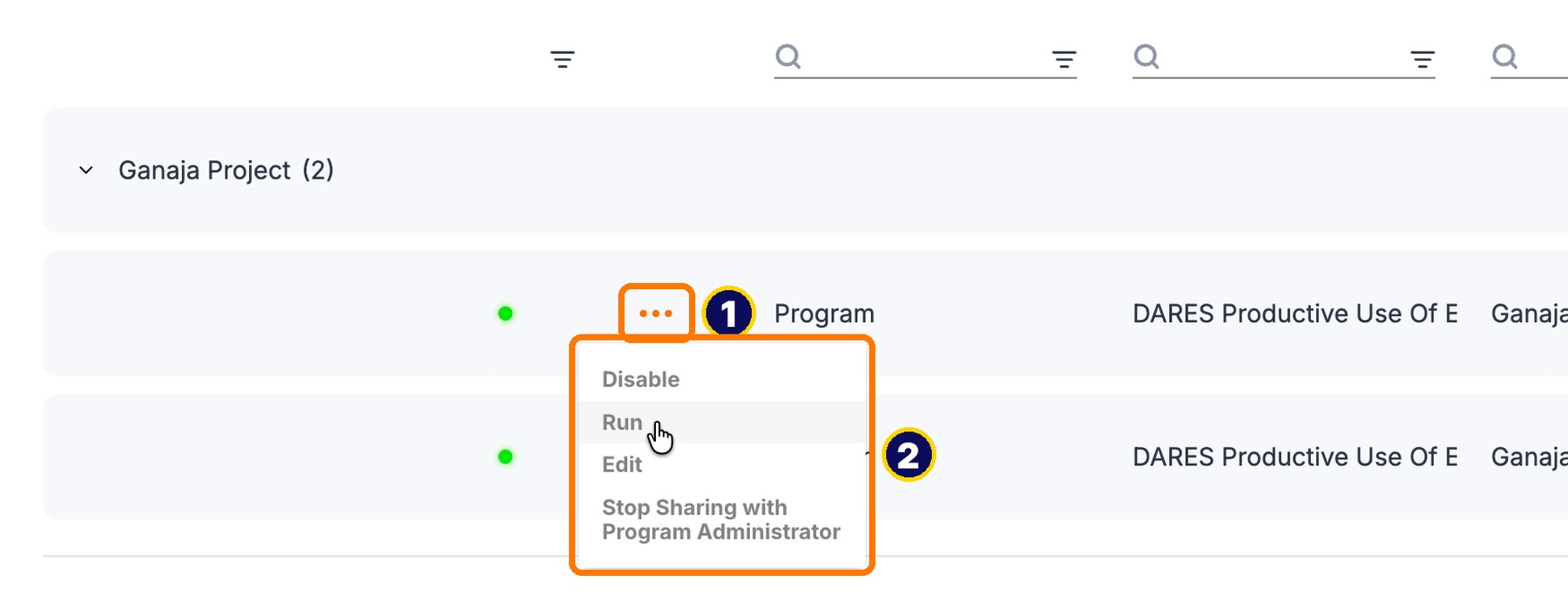
Use the orange ••• under Actions to Run (pull data now), Edit (change URL, key or settings), Disable (pause — the dot turns red) or Stop Sharing with Program Administrator.
Tip: after setup, click Run once and check your program’s Analytics to confirm the first readings have arrived.
Troubleshooting
Save stays grey: a required field is empty — scroll through the form and fill it in.
Validation error: check the URL has no spaces or extra text, and paste the key again in case it was cut off.
“Unauthorised” or key rejected: the key may be wrong, expired or replaced — ask IOBOTECH for the current key.
No data in Analytics yet: click ••• › Run, check your meters are online and reporting to IOBOTECH, and contact us if readings still don’t appear.
Need help or an API key?
Contact Essien at IOBOTECH on +234 906 882 5492 or business@iobotech.com. We’ll issue your key and help you get your meters reporting into Odyssey.